
Home Guides
FVOE guide for contracting authorities
How to log in as RUP, consult authorised files and contract files, start preliminary checks, request documents from certifying bodies and manage checks during execution on the FVOE 2.0 platform.
Remember
- To log in you need the Responsabile Unico del Progetto (RUP, single project manager) profile on ANAC services; without it, the e-procurement platform returns errors too.
- The FVOE does not notify the operator: send your requests by certified email (PEC) as well (this guide includes a template).
- Start requests for asynchronous certificates straight away: some take up to 30 days.
- If the system is not working, 30 days after the proposed award you can award on the basis of the bidder's self-declaration (Art. 99, paragraph 3-bis).
1 Definitions, acronyms and references
Definitions and acronyms
| Term/Acronym | Description |
|---|---|
|
ANAC |
Italian National Anti-Corruption Authority |
|
AgID |
Agency for Digital Italy |
|
BDNCP |
National Public Contracts Database |
|
CAD |
Digital Administration Code, i.e. Legislative Decree 82/2005, as amended |
|
CF |
Tax code |
|
CIG |
Tender identification code. It refers to a single lot of a tender and is assigned by ANAC. |
|
FAQ |
Frequently Asked Questions |
|
OE |
Economic operator. A natural or legal person intending to take part in procedures for selecting a contractor for the award of works, services and supplies. |
Table 1 - Definitions and acronyms
Purpose of this document
The Economic Operator's Virtual File (FVOE) is the application provided by ANAC (Italian National Anti-Corruption Authority) for managing the service of the same name by the contracting authority (SA) and the economic operator (OE).
The FVOE provides a repository that collects the documents the OE can use as proof of the requirements for taking part in public contract award procedures. As laid down in Resolution No. 262/2023, the FVOE allows SAs and contracting entities to obtain the documents proving that the general, technical-organisational and economic-financial requirements for the award of public contracts are met. It also allows OEs to upload to the system the documents they are responsible for producing.
This document explains how to manage and consult the virtual file using the functions available to SA users.
Service description
As part of the National Public Contracts Database (BDNCP), ANAC has developed the FVOE to give users the option of creating a repository in which to collect the documents they need when taking part in public contract award procedures.
Access to the FVOE functions is restricted to users registered with ANAC's services. The main functions available to SA users are:
Searching all the bidder's files to which the OE concerned has authorised access, including consulting the associated documents and the related information
Viewing the details of a document
Requesting access to a bidder's file
Requesting an update of a document
Requesting that a document be associated with a specific bidder's file
Searching for one or more OEs
System actors and roles
The actors who use the FVOE services are as follows:
Economic operator
In the life cycle of a contract, the OE plays a distinct role: it is the natural or legal person that takes part in a tender procedure for the award of public works by submitting a bid. The OE is asked to provide the data and documents relating to the general and special requirements set for each tender, and the virtual file is provided as a tool for this purpose.
The FVOE is used to take part in individual tenders, but the data and documents it contains can also be used for other tenders, as long as each of them remains valid.
When taking part in a tender, the OE indicates which data and documents in the virtual file are to be used as proof of the general and special requirements, so that the SA can assess them.
Contracting authority
In the life cycle of a contract, the SA plays a distinct role: it is a contracting authority, a contracting entity, an awarding body or any other legal entity that awards an OE a public procurement or concession contract for the purchase of services or supplies or the execution of works. The SA requests and assesses the conformity of the data and documents relating to the general and special requirements set for OEs in each tender, and the virtual file is provided as a tool for this purpose.
Under Annex I.1, Art. 1, paragraph 1, letter q) of Legislative Decree 36/2023 (Public Contracts Code), contracting authorities are “State administrations, territorial public bodies, other non-economic public bodies, bodies governed by public law, and associations, unions and consortia, however named, formed by those entities”.
The service is also intended for “central government authorities”, “sub-central contracting authorities”, “bodies governed by public law”, “public undertakings”, “entities holding exclusive or special rights”, “joint ventures” and “central purchasing bodies”, as defined in Annex I.1 to Legislative Decree 36/2023.
Under Art. 5 of Resolution No. 262 of 2023, access to the file is granted only to authorised persons, subject to registration with the service.
The names of the persons authorised to operate on the FVOE on behalf of the SA or the granting authority are communicated by the Single Project Manager (RUP) through the online platform of the SA or the granting authority.
At the time of writing, we have not tested the delegation functions. The practical guide below was drafted by simulating the operations that a Project Manager (RP) and an OE must carry out to make full use of the FVOE.
Any changes to the persons authorised to carry out checks are communicated using the dedicated system functions. These persons can access the FVOE from the day after the date of publication of the contract notice or of the direct award notice\award notice (depending on whether it is a direct award or a procedure for amounts outside the direct-award range), as shown in the BDNCP. They access it through the certified e-procurement platforms (PAD) of the SAs and granting authorities, which authenticate them as laid down in the Technical Rules referred to in Article 26 of the Code.
The hierarchy and rights for accessing the data already available or uploaded by OEs are summarised below:
| MODULE | Action in ANAC-FORM\Public Contracts Platform (PCP) | Type of action | WHO DOES WHAT |
|---|---|---|---|
| NPA module | Comunica Post Pubblicazione (post-publication communication) |
Creates the participants form or fills in form AD5\3 (direct award) with the successful bidders | RP, DRP2, DRP3 |
| FVOE module | FVOE | Request FVOE access from the OE | RP, DRP2, DRP3 |
| FVOE | Authorise ACCESS for the SA | OE: legal representative | |
| FVOE | Check the outcome of the FVOE access request | RP, DRP2, DRP3 | |
| FVOE | Search for FVOE documents already available | RP, DRP2, DRP3 | |
| FVOE | Retrieve FVOE document | RP, DRP2, DRP3 | |
| FVOE | Request documents from the OE | RP, DRP2, DRP3 | |
| FVOE | Uploads documents for the SA | OE: legal representative | |
| FVOE | Request documents from certifying bodies | RP, DRP2, DRP3 | |
| National Digital Data Platform (PDND)\FVOE | Uploads document | Certifying bodies | |
| FVOE | Recupera-storico-documento-fvoe (retrieve FVOE document history) | RP, DRP2, DRP3 | |
| FVOE | Recupero-anagrafica-oe (retrieve OE registry data) | RP, DRP2, DRP3 |
| Key |
|---|
|
The RP assigns the deputy Project Manager roles to other users through the Aggiungi Soggetto (Add person) method, specifying the operations covered by the delegation.
N.B.: This method, aggiungi soggetto, does not appear to be available in the PCP, but only in some AgID-certified PADs.
The deputy Project Manager (for either the award or the execution phase) will only have access to the operations delegated to them.
The delegation applies only to the individual contract/award for which it was granted.
There is no all-purpose delegation of functions, nor one covering groups of awards.
With the FVOE you can:
Use documents as proof of the self-declared requirements when taking part in tenders, so that there is a single place, linked to each tender, where proof of the special requirements can be found;
Reuse and have access to documents already made available to other SAs for pre-award and execution checks throughout the life cycle of contracts, including contracts other than those for which the certificates were issued;
Speed up the award phase;
Obtain from certifying bodies, in a single folder (repository), all the documents issued by the certifying bodies, without having to send them countless requests by certified email (PEC), with the risk of data loss or breaches of the privacy of the persons concerned.
What can you do with the FVOE?
As part of the BDNCP, ANAC has developed the FVOE to give users the option of creating a repository in which to collect the documents they need when taking part in public contract award procedures.
The main functions available to users are:
| Contracting authority | Economic operator |
|---|---|
|
|
2 Accessing the service
You can access the Economic Operator's Virtual File (FVOE) 2.0 service directly through its dedicated URL: https://portale-servizi.anticorruzione.it/fvsa
Alternatively, you can access it from the home page of the “Portale servizi Anac” (services portal of ANAC, the Italian National Anti-Corruption Authority): https://portale-servizi.anticorruzione.it
The authentication page for accessing the FVOE system is then displayed.
If you use the dedicated URL, the authentication page for accessing the FVOE system is displayed.
If you are not registered with ANAC's services, you can register at https://servizi.anticorruzione.it by selecting the “Registrati” (Register) link and following the registration procedure (for more details, see the user manual on registration and profiling, “Manuale Utente - Registrazione e Profilazione Utenti”).
You can log in with:
SPID
CIE
eIDAS
CNS (available soon)
The user profile required for access is that of Single Project Manager (RUP).
Once your credentials have been verified, you will see the home page of the Portale dei servizi ANAC (ANAC services portal).
PLEASE NOTE: if you are not registered with ANAC's services, you can register at https://www.anticorruzione.it/-/servizio-di-registrazione-e-profilazione-utenti by selecting the “Registrati” link and following the registration and profiling procedure (for details, see the “Manuale Utente - Registrazione e Profilazione Utenti”).
If you do not have a profile on ANAC's services, the certified e-procurement platform (PAD) will always return error messages, even if you are registered as a user on it, and your e-procurement service provider will not be able to resolve them.
So, on both the contracting authority (SA) side and the economic operator (OE) side, you must always check the so-called profiling and the powers it grants to the user.
3 Landing page (main page)
Once you have logged in to the Fascicolo Virtuale Stazione Appaltante (contracting authority virtual file), the system shows a landing page.
The screen has an identifier at the bottom left, which currently still shows the code F0.001
The landing page consists of 5 main sections:
The Le tue notifiche (Your notifications) section, containing the most recent notifications addressed to the logged-in user
The Ultimi fascicoli autorizzati (Latest authorised files) section: these are the bidder's files to which
access has been authorised and which were created or updated most recently
The Ultimi fascicoli dell’appalto (Latest contract files) section, which shows the most recently created or modified contract files
The Le tue Verifiche Preliminari (Your preliminary checks) section, which shows the preliminary check files opened with the new forms for the notice of start of requirement checks (AVR) and closed with the form for the notice of end of requirement checks (TVR), introduced from June 2025.
The side menu contains the following items:
Dashboard (the main page described above)
Fascicoli dell’Operatore Economico (Economic operator files)
I miei Appalti (My contracts)
Operatore Economico (Economic operator)
Le tue verifiche preliminari (Your preliminary checks)
Also at the top left, above the side menu, there is a drop-down menu for selecting the profile you want to work with. Selecting a profile opens a dedicated profile-change screen with the related information.
The profile selection screen looks like this:
When you click the Conferma (Confirm) button, the information made available will be that of the selected profile.
Each item in the various sections of the landing page is shown as a card, and each section has a button that leads to the page dedicated to that section:
Tutte le notifiche (All notifications)
Tutti i fascicoli autorizzati (All authorised files)
Tutti i fascicoli dell’appalto (All contract files)
The information shown on each notification card is:
Notification title: the title of the notification;
Sender/requester: identifier of the person who sent or triggered the notification;
“Approfondisci” (Find out more) button: link to the full content of the notification;
Notification expiry date: the date on which the notification expires. After this date, the notification will no longer be available
At the time of writing this practical guide, the authorisation notifications section no longer seems to be populated.
This is because, since the previous edition of the Operating Manual, Legislative Decree 209/2024 (the so-called corrective decree) has introduced a mechanism by which economic operators (OEs) taking part in a tender procedure automatically authorise access to their Economic Operator's Virtual File (FVOE).
Indeed, the dedicated section, which we will look at in detail below and which you can reach by clicking the vertical menu on the left of the FVOE start screen, looks like this:
With the introduction of the AVR and TVR forms, the page where contracting authorities (SAs) manage the FVOE is now divided into two subcategories:
Automatically authorised files: Contractor's Files (formerly called bidder's files).
Files requiring (traditional) authorisation: Preliminary Check Files. These require the authorisation and the “traditional” cooperation of the OE that you are about to select for a direct award (whether or not several OEs are consulted) or to invite to an RDO (request for offer) or a below-threshold negotiated procedure by invitation.
The reason why authorisation to view the virtual file is required lies in the legal basis for data processing. In the first case, processing is based on participation in the tender and on the explicit consent to processing given by the OE's legal representative in the application to take part in the tender\procedure.
Indeed, when the Single Project Manager (RUP), or another person delegated for this purpose, sends ANAC (Italian National Anti-Corruption Authority) the list of tender participants using form S2, this certifies to ANAC that the list includes only parties taking part in the tender and that they have consented to the processing of their data through the FVOE.
Therefore, ANAC does not need any further specific notice that the SA/granting authority has obtained consent for access to the FVOE.
Indeed, paragraph 5-bis, added to Article 35, reads as follows:
“When submitting their bids, economic operators shall send the contracting authority and the granting authorities their consent to the processing of data through the virtual file referred to in Article 24, in accordance with the Personal Data Protection Code (Legislative Decree No. 196 of 30 June 2003), for the purposes of the verification by the contracting authority and the granting authority that the requirements referred to in Article 99 are met, and for the other purposes laid down in this Code”.
MEMO FOR RUPs: Civil and criminal liability for any unauthorised processing of sensitive data through the FVOE lies with the person who sent form S2.
However, this prior authorisation has no legal basis in the case of the so-called preliminary checks, explained in the Public Contracts Platform (PCP) Manual updated to version 1.4 on 30 June 2025, which describes the new preliminary check services in chapter 4) and updates the use scenarios in chapter 6.
The information shown on each contractor's\bidder's file or preliminary check file card is:
Number of documents: number of documents in the file;
File status: status of the contract for which the file was created;
Contract subject: label showing the subject of the contract;
Codice appalto (Contract code): code of the contract to which the file refers;
“Fascicolo autorizzato” (Authorised file) button: link to the file detail page
Expiry date: expiry date of the file
The information shown on each contract file card is:
Number of documents: number of documents in the file;
File status: status of the contract for which the file was created;
Contract subject: label showing the subject of the contract;
Codice appalto: code of the contract to which the file refers;
“Fascicolo dell’appalto” (Contract file) button: link to the file detail page
Expiry date: expiry date of the file
Searching and browsing authorised files
On this page, as an SA user you can see all the bidder's files for which you have received
authorisation. To search for one or more bidder's files, select the I tuoi Fascicoli (Your files) menu item.
Set one or more search filters and click the Cerca (Search) button: the system will show the search results matching the filters in the lower part of the page.
The search filters available for finding a file are:
Cerca: free-text field
Fase Appalto (Contract phase): drop-down menu for selecting the contract phase the file is in (possible values: Pianificazione, Avvio, Pubblicazione, Aggiudicazione, Esecuzione, i.e. planning, start, publication, award, execution)
CIG: CIG of the relevant lot
Codice Appalto: code of the relevant contract
Codice fiscale OE (OE tax code): tax code of the person to whom the file refers
Data di creazione (Creation date): date the file was created
Search results are always shown as cards.
The card representing a bidder's file is shown below:
The information shown on each bidder's file card is:
Number of documents: number of documents in the file;
File status: Autorizzato/in attesa (authorised/pending);
Data autorizzazione (Authorisation date): the date on which the OE authorised access to the file
Contract subject: label showing the subject of the contract;
Codice fiscale (Tax code): tax code of the OE that owns the file
Ragione sociale (Company name): company name of the OE that owns the file
Codice appalto: code of the contract to which the file refers;
“Fascicolo autorizzato” button: link to the file detail page
Expiry date: expiry date of the file
Click the Fascicolo autorizzato link to display the file detail page.
If there are more than 6 search results per page, they are split across several pages. You can then browse the result pages until you find the one you need.
Searching and browsing contract files
On this page, as an SA user you can see all the contract files for which you can request the opening of a bidder's file for a given OE. To search for one or more contract files, select the I miei Appalti menu item.
Set one or more search filters and click the Cerca button: the system will show the search results matching the filters in the lower part of the page.
The search filters available for finding a contract file are:
Cerca: free-text field
CIG: CIG of the relevant lot
Codice Appalto: code of the relevant contract
Codice Stazione Appaltante (Contracting authority code): code of the SA responsible for the contract
Data di creazione: date the file was created
Search results are always shown as cards.
The card representing a contract file is shown below:
The information shown on each contract file card is:
Number of documents: number of documents in the file;
Contract subject: label showing the subject of the contract;
Codice appalto: code of the contract to which the file refers;
“Fascicolo dell’Appalto” button: link to the file detail page
Expiry date: expiry date of the file
4 Actions available for bidder's files
For each file, you can perform the following operations:
 View file details: this function displays the detail page of a bidder's file for which the contracting authority (SA) has obtained authorisation, starting from the list of search results or from the cards shown on the landing page.
 Richiedi documento (Request document): this function lets you ask the economic operator (OE) to upload a specific document to a bidder's file, by opening the list of available documents.
Browse associated documents: this function displays the list of documents associated with a given bidder's file and lets you view their details.
View bidder's file details
If you want to consult the details of a bidder's file you have been authorised to access and browse the documents it contains, click the Fascicolo autorizzato (Authorised file) link on the relevant card.
A Dettaglio fascicolo (File details) page opens, as shown below:
Request document
As an SA user, you can select the button on the file detail page to ask an OE, through a dedicated function, to upload to the bidder's file a document needed to take part in a given tender.
The page shows an input form with the following fields:
Tipo documento (Document type): drop-down menu listing the available document types (mandatory field)
Data di scadenza (Expiry date): calendar for selecting the expiry date of the request (mandatory field)
Note (Notes): optional free-text field
The following buttons are then available to complete the operation:
Conferma (Confirm): confirms the operation
Annulla (Cancel): cancels the operation
When you press the Conferma button, a pop-up appears confirming that the operation was successful, with the message “Documento richiesto” (Document requested).
After the operation, a notification is sent to the OE user so that they can upload the requested document to the bidder's file.
Browse associated documents
If you scroll down the file detail page, you will find the Documenti associati al fascicolo autorizzato (Documents associated with the authorised file) section, which lists the documents associated with that file in a table. This summary table shows:
Oggetto (Subject): subject of the document
Tipo (Type): document type
Stato (Status): document status
Azioni (Actions): column with a menu of the actions available for each item
From the Azioni column you can:
View the document details
View document details
If you select the Vedi (View) menu item in the function described in the previous paragraph, you are taken to the document detail page.
5 Actions available for contract files
You can manage the contract files available to you. In particular, you can perform the following operations:
 View contract file details: this function displays the detail page of a contract file, starting from the list of results or from the cards shown on the landing page, when you click the Fascicolo dell’Appalto (Contract file) link.
View document details: this function displays the detail page of a document associated with a contract file.
View contract file details
If you want to consult the details of a contract file and view its associated documents, click the  link on the relevant card.
A Dettaglio Fascicolo dell’Appalto (Contract file details) page opens, as shown below:
Browse associated documents
If you scroll down the file detail page, you will find the Documenti associati al fascicolo dell’appalto (Documents associated with the contract file) section, which lists the documents associated with that file in a table. This summary table shows:
Oggetto (Subject): subject of the document
Tipo (Type): document type
Azioni (Actions): column with a menu of the actions available for each item
From the Azioni column you can
View the document details
View document details
If you select the Vedi (View) menu item in the function described in the previous paragraph, you are taken to the document detail page.
Requesting file authorisation
By selecting the I miei appalti (My contracts) menu item, you can request authorisation to access the files of the bidders recorded in the system, as communicated to the Public Contracts Platform (PCP) directly or through certified e-procurement platforms (PAD).
The contract file details show the list of bidders.
You can request authorisation to access the bidder's file for a given contract from the menu in the table of contract participants, by selecting Richiedi autorizzazione (Request authorisation).
When you select Richiedi autorizzazione, a screen is displayed for completing and confirming the operation:
The page contains the following fields:
Ragione sociale (Company name): read-only field
Codice fiscale (Tax code): read-only field
ID Appalto (Contract ID): read-only field
Codice Appalto (Contract code): read-only field
Oggetto Appalto (Contract subject): read-only field
Data inizio autorizzazione (Authorisation start date): mandatory editable field
Data fine autorizzazione (Authorisation end date): mandatory editable field
After filling in at least the fields marked as mandatory on the screen, press the Conferma (Confirm) button.
When the operation is complete, a pop-up shows the outcome with the text “Richiesta inoltrata” (Request sent).
N.B.: this procedure still applies to the virtual files of all tenders published up to the changes introduced from 30 June 2025, which followed the President's announcement issued by ANAC (Italian National Anti-Corruption Authority) on 18 June 2025
For tenders published after 1 July 2025, once you have entered the authorisation validity dates, the screen now looks like this:
Once authorisation has been requested, the file appears immediately in the “I miei Appalti” section and, when selected, looks like this:
6 Managing notifications
NB The notifications section is no longer populated since the change that introduced “files” already authorised when form S2 or the direct awardee's data (in the case of direct awards) is entered.
Before the change, however, users could manage the notifications addressed to their profile, which were needed to complete the operations for assessing the requirements submitted by economic operators (OEs) to take part in the tender.
For this purpose, the landing page still has a dedicated section where you would be able to see the three most recent unread notifications addressed to the contracting authority (SA):
You can see more notifications by clicking the “Tutte le notifiche” (All notifications) button at the top right, which takes you to a page containing all the notifications that have not yet expired.
Notifications addressed to SA users can be of 3 types:
Risposta autorizzazione (Authorisation response): notification showing an OE's response to a request for authorisation to access a bidder's file
7 The new Preliminary Checks function
To use the new Preliminary Checks service, introduced from 30 June 2025, in the Economic Operator's Virtual File (FVOE), the Project Manager (RP) must start the dedicated service in the Public Contracts Platform (PCP):
The actions for the notices relating to requirement checks are available from the “Verifiche Preliminari” (Preliminary checks) menu.
Once the page is open, you can start the relevant notices from the main coloured button at the top right, i.e.  .
.
The notice of start of requirement checks (AVR) contains the registry data of the parties who expressed interest following any market survey notice published using form PL1 or PL2, or the registry data of the parties identified directly by the contracting authority (SA) for a direct award (without first sending a PL1 or PL2).
If you do not have this data, you can use the data uploaded to your online supplier register or the “Cerca Impresa” (Find company) function on Consip's Acquisti in Rete portal.
The notice activates the FVOE for these parties and does not assign a CIG.
The notice of end of requirement checks (TVR) is used to indicate the conclusion of the FVOE checks started with the corresponding AVR when the SA decides NOT to proceed with the award procedure.
Starting the preliminary checks
Once you click the “Seleziona Verifica Preliminare” (Select preliminary check) button, you are taken to a screen where you can fill in the AVR.
Section 1 - Stazioni Appaltanti (Contracting authorities) - MANDATORY: you must enter at least one block with the SA's data. If several SAs are involved, you must enter all of them (e.g. delegated / delegating SA).
Section 2 - Pianificazione (Planning) - optional: fill in only if the AVR follows a market survey (form PL1 or PL2); if there was no prior market survey, you can leave this field blank.
Field 3 - Elenco Soggetti (List of parties) - MANDATORY: you must enter the list of parties to be checked. For each economic operator (OE), you must fill in the tax code, name, type and role.
To fill in the various fields and move between sections, click the “Successivo” (Next) button 
Section 2
Section 3
Before pressing green button 2, you must enter the participants (or rather, the OEs on which the so-called preliminary checks are to be carried out) by pressing the BLUE “Aggiungi Partecipante” (Add participant) button (fig. 1).
Indeed, pressing the  button changes the screen as follows:
Pressing the 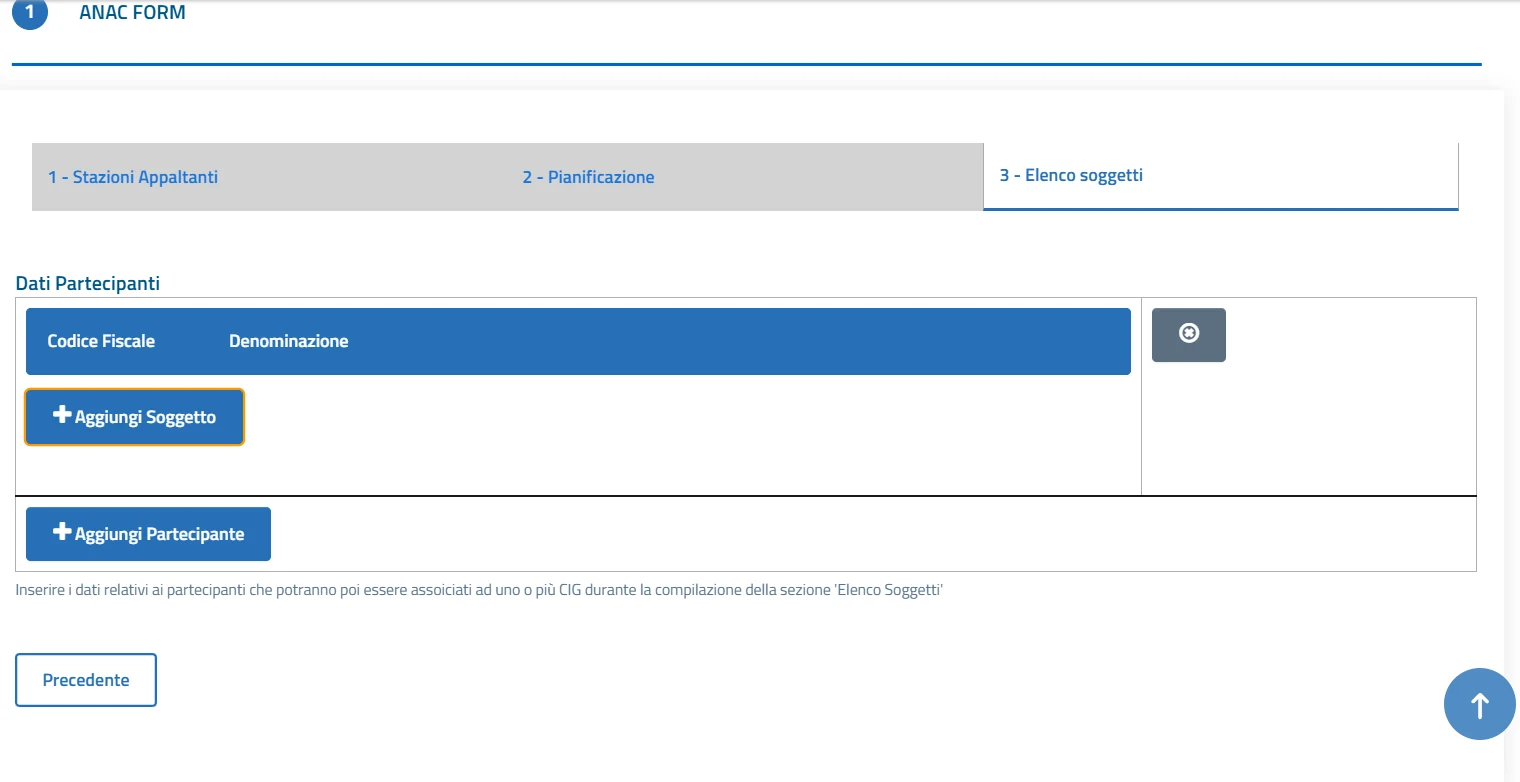 button in turn opens another screen, as shown below:
BY ENTERING THE DATA OF THE OE FOR WHICH YOU WANT TO USE THE FVOE SYSTEM with the new AVR service, you will then be able to carry out the checks, subject to the OE's authorisation, following the procedure described in the next pages of this practical guide.
One of the new features introduced with the FVOE 2.0 updates is the auto-fill service.
With this service, for all forms in which participants are communicated, or in the case of direct awards, the system lets you pre-fill the participants' data by entering the tax code of the legal person concerned:
When you enter the tax code (in this case we entered the VAT number) (3), the system returns the name of the company as registered with ANAC, the Italian National Anti-Corruption Authority (4).
When you select the company, the “Denominazione” (Name) field is also filled in, as follows:
By pressing the downward triangle icon, you can also choose the OE's type and form of participation.
Once the fields are complete, as in the image below, you can press the SALVA (Save) button 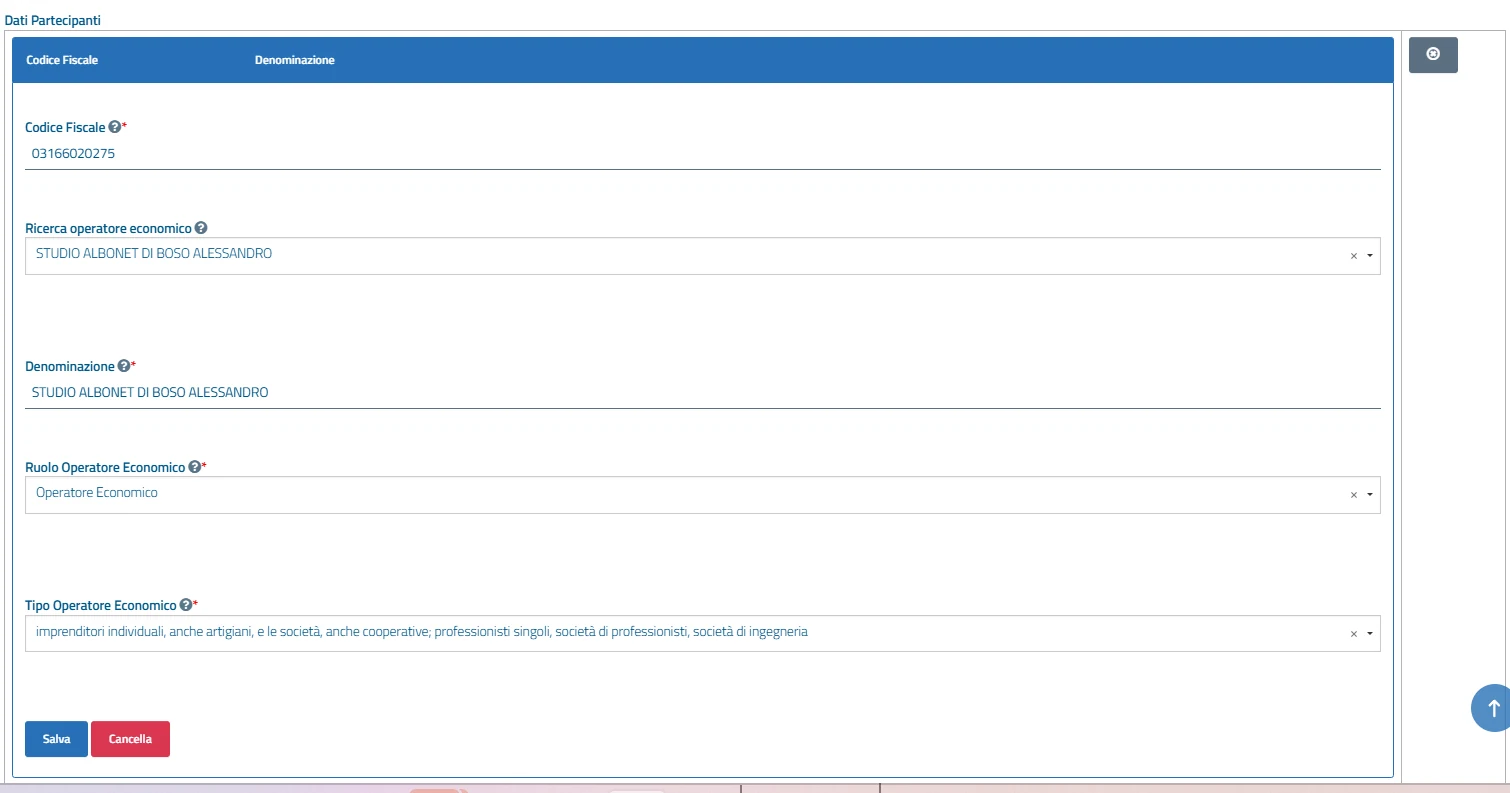
At this point, once you have entered all the OEs you want to check, you can press the “Conferma Azione” (Confirm action) button
A pop-up opens confirming the action and offering the RP two options to choose from:
Once you have finished entering data in the PCP form, you can return to the FVOE to submit the authorisation request. As mentioned above, this request is not authorised automatically, because at this stage the OE does not know that it will receive a request for a quotation or a request for an offer.
The contracting authority's DASHBOARD (main page)
In addition, (5) at the top left, above the side menu, there is a drop-down menu for selecting the profile you want to work with.
To make the selection, click the 3 dots as shown in the box below (6). This displays a dedicated profile-change screen with information on the SA for which you need to request and check the OEs' documents.
When you click the “Seleziona Azienda” (Select company) link, the following screen appears:
When you click the Conferma (Confirm) button (7), the information made available will be that of the selected profile
The resulting page is shown below
Each item in the various sections of the main page is shown as a card/box, and each section has a button that leads to the page dedicated to that section:
Tutte le notifiche (All notifications)
Tutti i fascicoli autorizzati (All authorised files)
Tutti i fascicoli dell’appalto (All contract files)
8 Step-by-step procedure for requesting FVOE authorisation
Step 7
Send a certified email (PEC) to the economic operator (OE) asking it to carry out the following operations:
- Authorisation to view the file and for contracting authorities (SAs) to obtain ex officio the certificates issued by certifying bodies as proof of the general requirements self-declared by OEs when taking part in the award procedure (it makes no difference whether it is a direct award or a tender, because the requirements under Arts. 94, 95 and 98 must always be met, regardless of the amount!);
- Upload of the documents requested as proof of the special requirements to be demonstrated under Arts. 100 and 103 of Legislative Decree 36/2023 (Public Contracts Code)
This is because what happens in the Economic Operator's Virtual File (FVOE), especially when it is managed through the services provided by ANAC (Italian National Anti-Corruption Authority) and the Public Contracts Platform (PCP), is a visual notification on the OE's dashboard, as follows:
This box shows only the tax code of the requesting Project Manager (RP) and the “Approfondisci” (Find out more) button, which the OE must use to access the virtual contract file for which the SA has requested authorisation.
Please note
We recommend sending a PEC because it can be relied on against third parties and, above all, because it gives the SA certain proof that the request has been delivered.
If the OE fails to act, the SA may:
Exclude the OE;
Report the OE's uncooperative conduct to ANAC so that ANAC imposes an administrative fine under Article 222, paragraph 13, of between EUR 500 and EUR 5,000; the EUR 10,000 limit applies to anyone who provides false data or documents, without prejudice to any criminal penalty.
The FVOE system does not send notifications by ordinary email, nor to the PEC address given by the OE when registering for ANAC's services.
This means that SAs' requests for access to the FVOE may go unanswered, wasting time in reaching the contract stage of the award and, therefore, its execution phase!
Below is a model notice that an RP could send to an OE to obtain the documents proving the award requirements:
Model notice of start of requirement checks on FVOE 2.0
Reference translation: when writing to Italian operators, use the Italian model in the Italian version of this guide.
For the attention of Sent by certified email (PEC) |
To The Economic Operator Legal Representative (digital domicile for the award procedure: _______@pec.it) |
|---|---|
Subject: Notice of request for authorisation to access the virtual contract file with CIG No. _________________________ - Direct award under Art. 50, paragraph 1, letter a\b\c (or Tender for _________ launched under Art.________ etc.). We hereby inform you that, in accordance with the award\tender rules (as applicable), this Office has submitted, pursuant to ANAC Resolution No. 262 of 20 June 2023, referred to in Article ______ of the award documents (request for quotation\RDO\TD….)\tender documents (as applicable), the request for AUTHORISATION to CHECK THE REQUIREMENTS and to OBTAIN THE DOCUMENTS proving the special requirements under Art. 100 of Legislative Decree 36/2023 through the system provided by ANAC (Italian National Anti-Corruption Authority) called Economic Operator's Virtual File (FVOE) 2.0. Pending the introduction by ANAC of a system notifying authorisation requests from contracting authorities and authorisations granted by economic operators, this notice is sent to inform you that the request has been made. With reference to the procedure set out in the award\tender documents and the resolution cited above, and bearing in mind that failure to authorise access to the virtual file may be taken into account by the contracting authority as grounds for not awarding the contract\not making the direct award, owing to breach of the principles set out in Arts. 1, 2 and 3 of Legislative Decree 36/2023, you are requested to comply with this letter by the peremptory time limit (if provided for in the previous documents) of 5*, five days, (insert a reasonable time limit based on the volume of documents requested) from receipt of this letter, on pain of forfeiting the proposed award\direct award (as applicable). Once you have done so, please also upload the following documents proving the special requirements under Art. 100 of Legislative Decree 36/2023:
Please note that authorisation must be granted periodically, including while any direct award\award is in progress, so that checks can be carried out on the self-declared requirements throughout the life cycle of this direct award\contract. For more details, please refer to the manuals issued by ANAC, available at the following link (click and download). The above documents MUST be uploaded only to the ECONOMIC OPERATOR'S FILE, economic operator component, within the contract to which this request for documents refers. Documents sent by PEC or by any other means will not be accepted. We look forward to your reply, first through the services provided by ANAC and then by PEC to the following address: ________@pec.it. Yours faithfully, Place and date,_________________________ The Single Project Manager (RUP) Full name |
|
File status after authorisation
Let us now see how a virtual contract file changes depending on whether or not the OE has granted authorisation
N.B.: if the documents are already available because other RPs have requested them and they are already in the OE's FVOE, the RP can download them without having to request them again; if they have expired, new requests must be made.
9 Requesting documents from certifying bodies
What the contracting authority can do and which documents it can request
Only when the file has been authorised by the economic operator (OE), in the case of preliminary checks, or ALWAYS (from 1 January 2025), will the contracting authority (SA) see the following button appear in its back end
Once you have selected the requests to be sent to the certifying bodies and sent the certification requests, you can wait for the certifying bodies to respond to them.
As regards the requirements under Art. 100 (special requirements), however, the OE, following a formal request from the SA, MUST upload the documents itself, so that the SA can then find the relevant supporting documents in the Virtual Contract File (FVA).
Documents that can be requested in FVOE 2.0
On 16 April 2025, the President of ANAC (Italian National Anti-Corruption Authority) issued an announcement on the new features introduced in the virtual file to implement the legislative amendment of 31 December 2024, the so-called corrective decree (Link to the announcement), accompanied by a list available at the following link: Link to the list
| Availability status | Document/Measure | Certifying body | Synchronous/Asynchronous | Issue time |
|---|---|---|---|---|
| TECHNICAL ASPECTS TO BE DEFINED | REGISTERED LEASE AGREEMENTS | Revenue Agency (Agenzia delle Entrate) | Not known | |
| TECHNICAL ASPECTS TO BE DEFINED | REGISTRATION IN THE RUNTS (NATIONAL THIRD SECTOR REGISTER) | Ministry of Labour | Not known | |
| TECHNICAL ASPECTS TO BE DEFINED | REPORT ON THE STAFF SITUATION | Ministry of Labour | Not known | |
| IN TESTING | ISO CERTIFICATE | Accredia – IAF database | Synchronous | Immediate |
| AVAILABLE | INCOME DATA OF NATURAL PERSONS AND PARTNERSHIPS | Revenue Agency | Asynchronous | 24 hours |
| AVAILABLE | DEFINITIVELY ESTABLISHED TAX LIABILITIES | Revenue Agency | Asynchronous | 10 working days |
| AVAILABLE | PENDING TAX LIABILITIES | Revenue Agency | Asynchronous | 30 calendar days |
| AVAILABLE | EXTRACT FROM THE COMPUTERISED COMPANY RECORDS | ANAC | Synchronous | Immediate |
| AVAILABLE | BUSINESS REGISTER EXTRACT | Chamber of Commerce (CCIAA) | Synchronous | Immediate |
| AVAILABLE | FINANCIAL STATEMENTS | CCIAA | Synchronous | Immediate |
| AVAILABLE | AVERAGE WORKFORCE | INPS (National Social Security Institute) | Synchronous | Immediate |
| AVAILABLE | CEL MAE (WORKS EXECUTION CERTIFICATE) | Ministry of Foreign Affairs | Synchronous | Immediate |
At the time this manual was prepared, the documents that could be requested with the Economic Operator's Virtual File (FVOE) 2.0 were as follows:
| Go-live date | Document code | Document description | Certifying body | NOTES |
|---|---|---|---|---|
| 23 January 2024 | 00001 | Comunicazione antimafia (anti-mafia communication) | Ministry of the Interior | If the Project Manager (RP) is also registered with the prefecture of the province where the SA is based, they can submit the request for an anti-mafia communication\anti-mafia information; the document, including any clearance wording, will only be accessible by querying the system provided directly by the BDNA (National Anti-Mafia Database), in the manner laid down there. To allow direct access from the FVOE, the Ministry of the Interior requires LoA4 credentials (SPID\CIE3) and, in any case, does not allow mediated access, as it is not one of the bodies required to ensure interoperability under the CAD (Digital Administration Code). Until the system is fully populated, you must enter the names of the persons who form part of the OE's corporate structure. |
| 23 January 2024 | 00004 | Certificato integrale del casellario giudiziario (full criminal record certificate) | Ministry of Justice | Until the system is fully populated, you must enter the names of the OE's members (partners) one by one. |
| 23 January 2024 | 00005 | Anagrafe delle sanzioni amministrative dipendenti da reato (register of administrative sanctions for offences) | Ministry of Justice | Immediate; issued by the Ministry of Justice through application cooperation with ANAC |
| 7 November 2024 | 00007 | Iscrizione WhiteList antimafia (registration on the anti-mafia white list) | Ministry of the Interior | see 00001 above |
| 2 August 2024 | 00008 | DURC emesso in corso di validità (valid DURC, i.e. social security compliance certificate) | INPS | Issues the valid DURC; alternatively, Single Project Managers (RUP) already authorised with INAIL\INPS can request a new one |
| In Progress | 00009 | Sanzioni Ispettorato del lavoro (Labour Inspectorate sanctions) | National Labour Inspectorate | (not yet accessible) |
| 25 September 2024 | 00010 | Verifica esistenza prospetto informativo disabili (check that the disability employment report exists) | Ministry of Labour | For companies with more than 15 employees, checks that the report was sent to the Ministry of Labour by 31 January each year for the previous year. |
| 25 September 2024 | 00011 | Verifica esistenza rapporto parità di genere (check that the gender equality report exists) | Ministry of Labour | required by Art. 46 of the Equal Opportunities Code (Legislative Decree 198/2006) for companies with >50 employees, optional for those with 15 to 50. |
| 23 January 2024 | 00021 | Comunicazione regolarità fiscale (tax compliance communication) | Revenue Agency | |
| 23 January 2024 | 00033 | Estratto del casellario informatico ANAC (extract from the ANAC computerised records) | ANAC | Immediate; issued by the Ministry of Justice through application cooperation with ANAC |
| 23 January 2024 | 00034 | Visura al registro delle imprese (Business Register extract) | Unioncamere (Italian Union of Chambers of Commerce) | Immediate; issued on ANAC letterhead through application cooperation with the Chambers of Commerce |
| 23 January 2024 | 00038 | DURC inarcassa professionista (Inarcassa DURC – professional) | Inarcassa (pension fund for engineers and architects) | immediate – working, with immediate issue through application cooperation with ANAC on INARCASSA letterhead. |
| 23 January 2024 | 00039 | DURC inarcassa impresa (Inarcassa DURC – company) | Inarcassa | immediate |
| 23 January 2024 | 00035 | Dati reddituali società di persone (income data – partnerships) | Revenue Agency | (not always working) |
| 23 January 2024 | 00036 | Consistenza media personale (average workforce) | INPS | (not always working) |
| 23 January 2024 | 00037 | Costo complessivo personale (total staff costs) | INPS | (not always working) |
| 23 January 2024 | 00041 | Dati reddituali impresa individuale (income data – sole proprietorships) | Revenue Agency | (not always working) |
| 16 September 2024 | 00042 | Carichi Fiscali Pendenti (pending tax liabilities) | Revenue Agency | Operational and released |
| 23 January 2024 | 00899 | Documento Generico OE (generic OE document) | OE |
At present, the SOA certification cannot be obtained through the FVOE.
It must be checked on the dedicated ANAC page, available at the following link:
What to fill in to obtain a document
If you request the Comunicazione Antimafia, the following screen is displayed:
If, instead, you select Sanzioni Amministrative dipendenti da Reato (administrative sanctions for offences), the system displays the following screen:
How the contracting authority checks that the documents have arrived
N.B.: this screen is only for monitoring whether the requests have been received by the certifying bodies.
The grey\red or green dot shows that the request to the certifying body is in one of the following states:
grey: request submitted;
green: request sent;
red: request not delivered – error (not specified).
When you press Associa (Associate), a pop-up appears confirming that the operation was successful.
After the operation, the document will appear in the list of documents associated with that file and can be consulted on the file detail page.
Once all the documents have been obtained, you can proceed with the award\direct award of the contract!
10 Contract execution phase
Checks during the execution phase
Even after the contract has been signed, you can submit requirement check requests throughout the execution phase of the award.
In this case, the Project Manager (RP), or the appointed deputy Project Manager for the award phase (DRP2) and/or deputy Project Manager for the execution phase (DRP3), can search for the contract file, request authorisation to access the virtual contract file and manage the requests to be sent to the certifying bodies.
These requests must be made in the same way as described above.
In these cases, you will need to use the “Richiedi Autorizzazione” (Request authorisation) or “Richiedi Aggiornamento” (Request update) functions.
N.B.: under Art. 12.4 of Resolution No. 262/2023 of ANAC (Italian National Anti-Corruption Authority), from 1 January 2024:
until the system is fully operational, contracting authorities (SAs) and granting authorities carry out the checks for which they are responsible on the data and documents proving the general requirements that are not available in the Economic Operator's Virtual File (FVOE), pursuant to Article 40, paragraph 1, of Presidential Decree No. 445 of 28 December 2000, in the manner laid down in Article 71, paragraph 2, of the same decree;
until the system is fully operational, the data and documents proving the technical-organisational and economic-financial requirements that are not available in the FVOE are uploaded to the system by economic operators (OEs);
until the system is fully operational, SAs and granting authorities send ANAC the information they have established that is relevant to demonstrating the absence of the grounds for exclusion under Articles 94 and 95 of the Code, for entry in the computerised records, in the manner set out in the Regulation on the operation of the Records adopted by ANAC under Article 222, paragraph 10, of the Code;
until the FVOE is fully interoperable with the European Single Procurement Document (DGUE), the data, information and documents to be used as proof of the participation requirements are, where necessary, indicated by the OE in the manner provided for by the system.
11 Documents available through the FVOE
These are the documents the contracting authority can request from the certifying bodies through the FVOE, with the issue times stated by ANAC. Start asynchronous requests as early as possible: some take up to 30 days.
| Document | Certifying body | Issue | Time |
|---|---|---|---|
| Check of payment of the ANAC contribution | ANAC | Synchronous | Immediate |
| Income data of individuals and partnerships | Revenue Agency | Asynchronous | 24 hours |
| Definitively established tax liabilities | Revenue Agency | Asynchronous | 10 working days |
| Pending tax liabilities | Revenue Agency | Asynchronous | 30 calendar days |
| Extract from the ANAC companies records | ANAC | Synchronous | Immediate |
| Business Register extract | Chamber of Commerce (CCIAA) | Synchronous | Immediate |
| Financial statements | Chamber of Commerce (CCIAA) | Synchronous | Immediate |
| Average workforce | INPS (social security institute) | Synchronous | Immediate |
| CEL MAE (certificates of execution of works) | Ministry of Foreign Affairs | Synchronous | Immediate |
| Disability employment report (prospetto informativo disabili) | Ministry of Labour / local office | Synchronous | Immediate |
| Anti-mafia white list | Ministry of the Interior | Synchronous | Immediate |
| Anti-mafia communication | Ministry of the Interior | Asynchronous | 5 days |
| Full criminal record certificate | Ministry of Justice | Asynchronous | 2 hours |
| Register of administrative sanctions for offences | Ministry of Justice | Asynchronous | 2 hours |
| Measures of the Ministry of Infrastructure and Transport | Ministry of Infrastructure and Transport | – | – |
| Gender equality report | Economic operator / Ministry of Labour | Synchronous | Immediate |
Source: ANAC, Documenti e informazioni disponibili attraverso il FVOE (Documents and information available through the FVOE, in Italian). ANAC updates the list periodically.
Documents on special requirements (Art. 100 of Legislative Decree 36/2023) do not come from the certifying bodies: the economic operator uploads them at the contracting authority’s formal request.
12 Rules and news to know
Key rules
- The FVOE operates within the National Public Contracts Database (BDNCP) and makes it possible to check the absence of grounds for exclusion (Arts. 94 and 95) and the possession of requirements (Arts. 100 and 103 of Legislative Decree 36/2023). Art. 24
- The contracting authority checks grounds for exclusion and requirements through the FVOE, the other documents attached by the operator and interoperability with the National Digital Data Platform (PDND) (Art. 99, paragraphs 1 and 2).
- Operators may not be asked for documents that are already in the file, already held by the contracting authority or obtainable through interoperability (Art. 99, paragraph 3).
- If the system malfunctions, thirty days after the proposed award the contract can be awarded on the basis of the bidder’s self-declaration, with the checks completed afterwards (Art. 99, paragraph 3-bis).
- The people authorised to work on the FVOE are notified by the Single Project Manager (RUP) through the e-procurement platform and gain access from the day after publication of the call for tenders or notice (ANAC Resolution no. 262/2023, Art. 5.3).
- Breaches by the contracting authority of the rules on the full functionality of the FVOE entail liability, including civil liability, for the damage suffered by the operator (Resolution no. 262/2023, Art. 11.1).
Timeline
ANAC Resolution no. 464: the Virtual File takes over from the AVCpass system, which it replaces from 27 October 2022.
ANAC Resolution no. 262, provided for by Art. 24, paragraph 4: it governs the FVOE under the new Code, effective from 1 January 2024.
The corrective decree (Legislative Decree 209/2024) introduces Art. 99, paragraph 3-bis, on awarding contracts when the FVOE malfunctions.
ANAC President’s announcement: in award procedures, access to the file no longer requires the operator’s explicit authorisation.
Preliminary checks arrive (AVR and TVR notices), for checks before the procedure starts, with the operator’s authorisation.
Criminal record certificates for procurement can only be obtained through ANAC procedures (Ministry of Justice circular of 13 December 2024).
FVOE 2.0 makes it possible to check payment of the ANAC contribution, where required.
Council of State, Section III, judgment no. 4484: a clerical error in the file data does not lead to automatic exclusion.
Text of Art. 24, explanatory report and decisions on CodiceAppalti.it (in Italian)
13 Need help?
Studio Albonet supports RUPs and procurement offices on the FVOE: on-demand training on your real workflow, hands-on support with requirement checks and a help desk for your offices.